How to Add New Leads to propipelines.com from your Typeform Form Entries
To get started, you would need to have an account with Typeform, Zapier, Pro Pipe Lines as well as an existing form on Typeform.
If you don’t have an account with propipelines.com, click here to start a FREE trial.
If you don't have an account with Typeform, click here to start a FREE account.
If you don't have an account with Zapier, click here to sign up for a FREE trial.
Get Started
Connect your TRIGGER app account and set up the trigger
Sign into your Zapier account and click on the MAKE A ZAP! button at the very top where you will be directed to a new page:

1. Choose the Trigger App: Typeform
2. Choose the Trigger: New Entry
3. Connect Zapier to your Typeform account by entering your login email address and password
4. Set up Typeform entry by selecting the form you would like to watch for new submissions
5. Test this step to make sure it runs successfully.
Connect your ACTION app account and set up the action
1. Choose an Action App: propipelines.com
2. Choose an Action: Create Lead
3. Connect Zapier to your propipelines.com account if you haven’t already by

4. Edit Template to set up your propipelines.com lead!
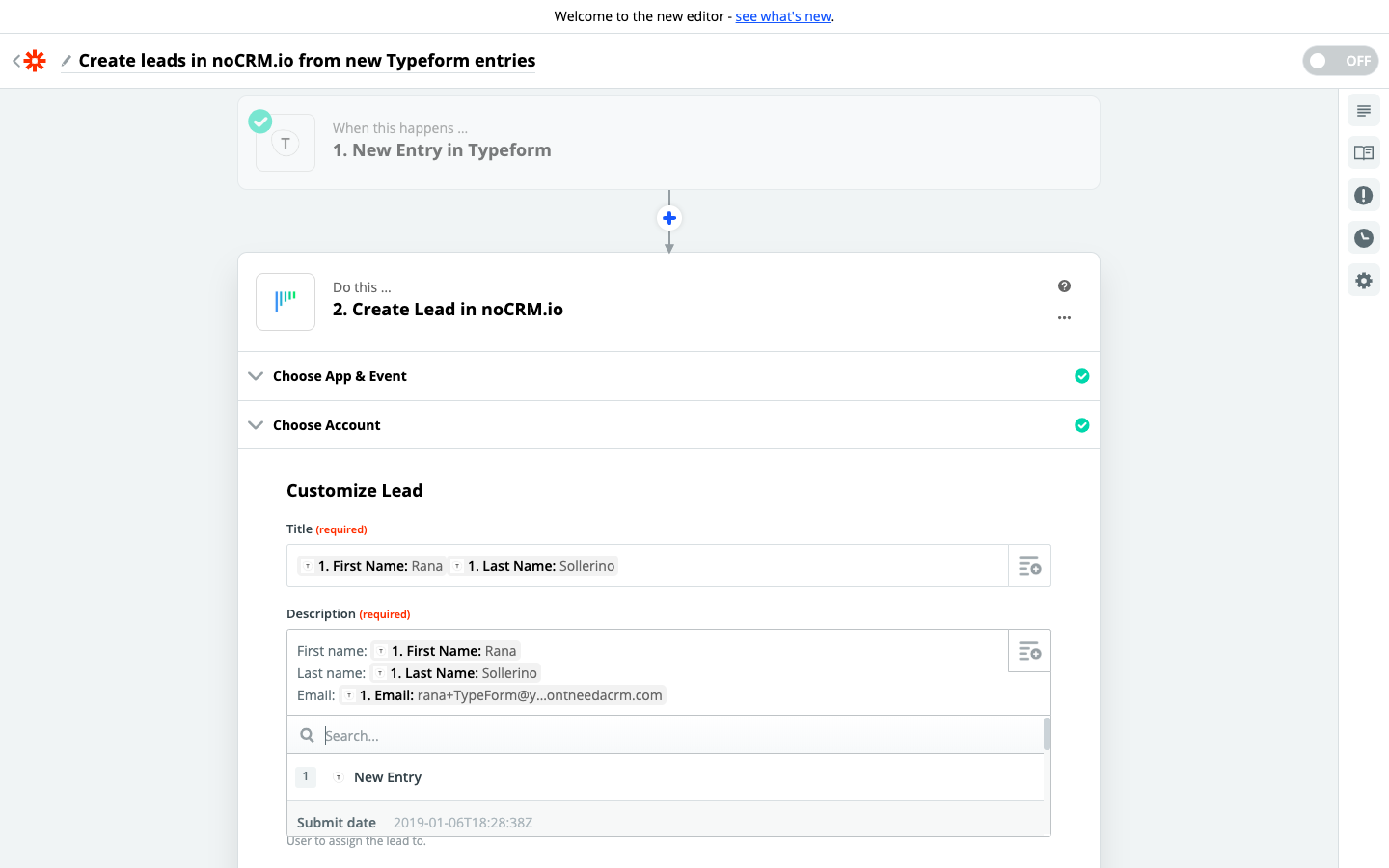
5. Test the step and the Action set up is finished