How to Automatically Add Email Attachments to your Leads
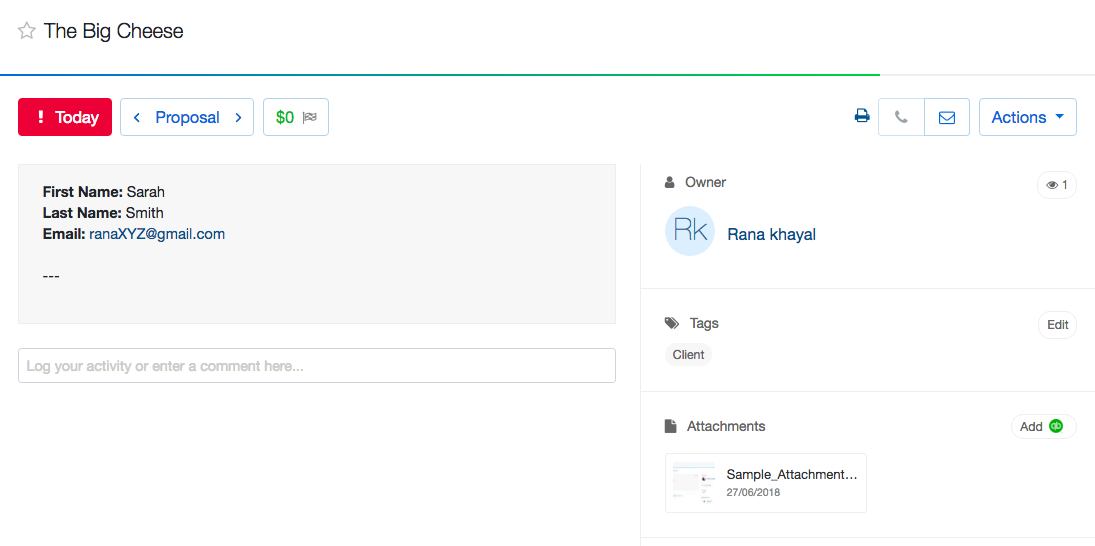
Automatically add attachments received in your Gmail account to the corresponding propipelines.com leads.
All you need to set it up are Gmail, propipelines.com, and Zapier accounts.
If you don’t have an account with propipelines.com, click here to start a FREE trial.
If you don't have an account with Zapier, click here to sign up for a FREE trial.
Get Started
Connect your TRIGGER App Account and Set Up the Trigger
Sign into your Zapier account and click on the MAKE A ZAP! button at the very top where you will be directed to a new page:

1. Choose the Trigger App: Gmail
2. Choose the Trigger: New Attachment
3. Connect Zapier to your Gmail account
4. Test this step by having a recently received email attachment.
Connect your ACTION App Account and Set Up the Action
1. Choose an Action App: propipelines.com
2. Choose an Action: Add Attachment
3. Connect Zapier to your propipelines.com account if you haven’t already by

4. Begin to set up your template by clicking on Add a Search Step to set up the search for propipelines.com lead
Based on the email attachment Zapier retrieved from Gmail in the previous step, select the email address of the sender.
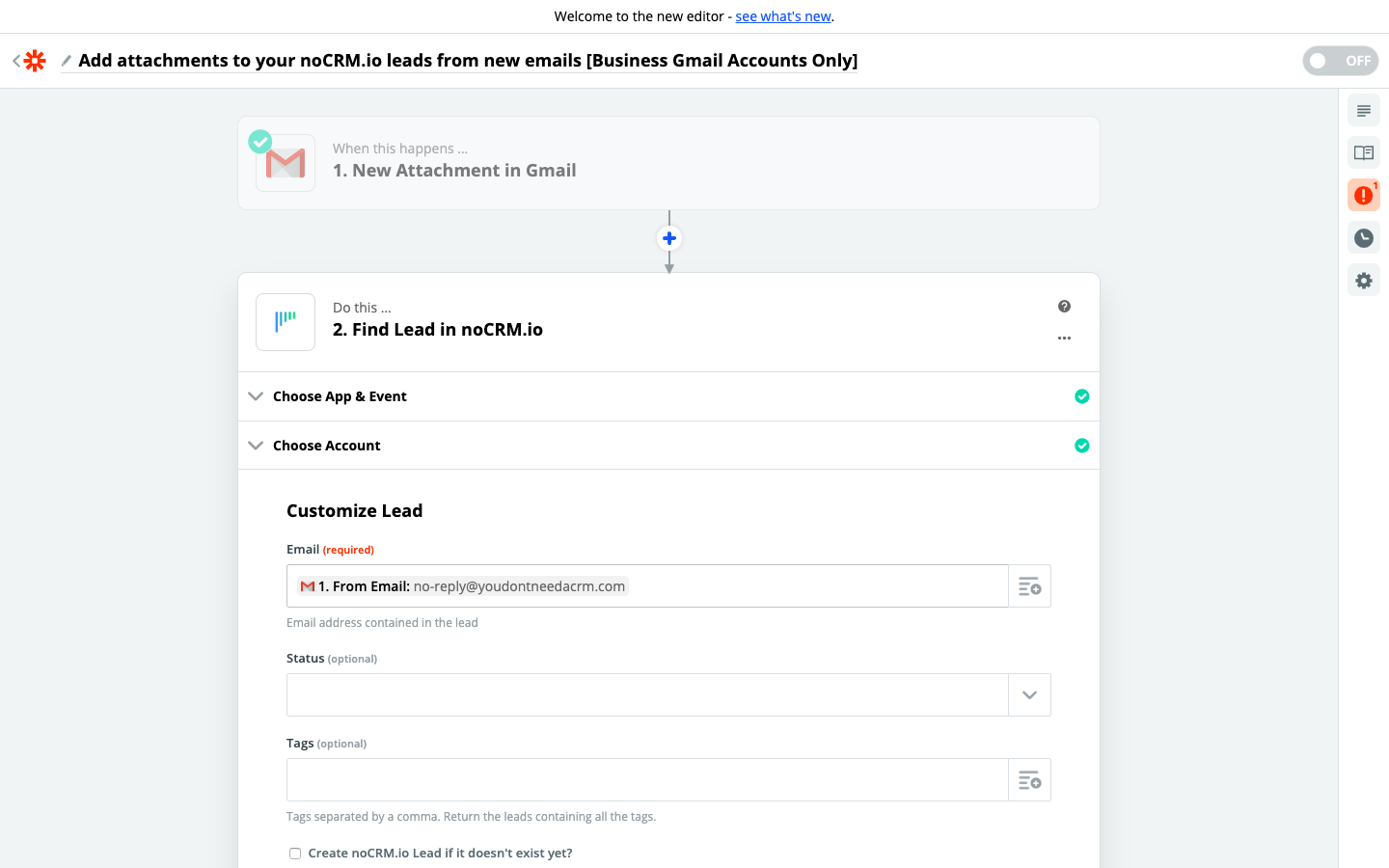
5. Test the step and click on the "Add a step" button
Connect your ACTION App Account and Set Up the Second Action
1. Choose an Action App: propipelines.com
2. Choose an Action: Add Attachment
3. Connect Zapier to your propipelines.com account which you've already done in the second step
4. Edit Template to select the attachment you want to add to your lead
Based on the details Zapier retrieved from the Gmail attachment, select the attachment name and the attached file.
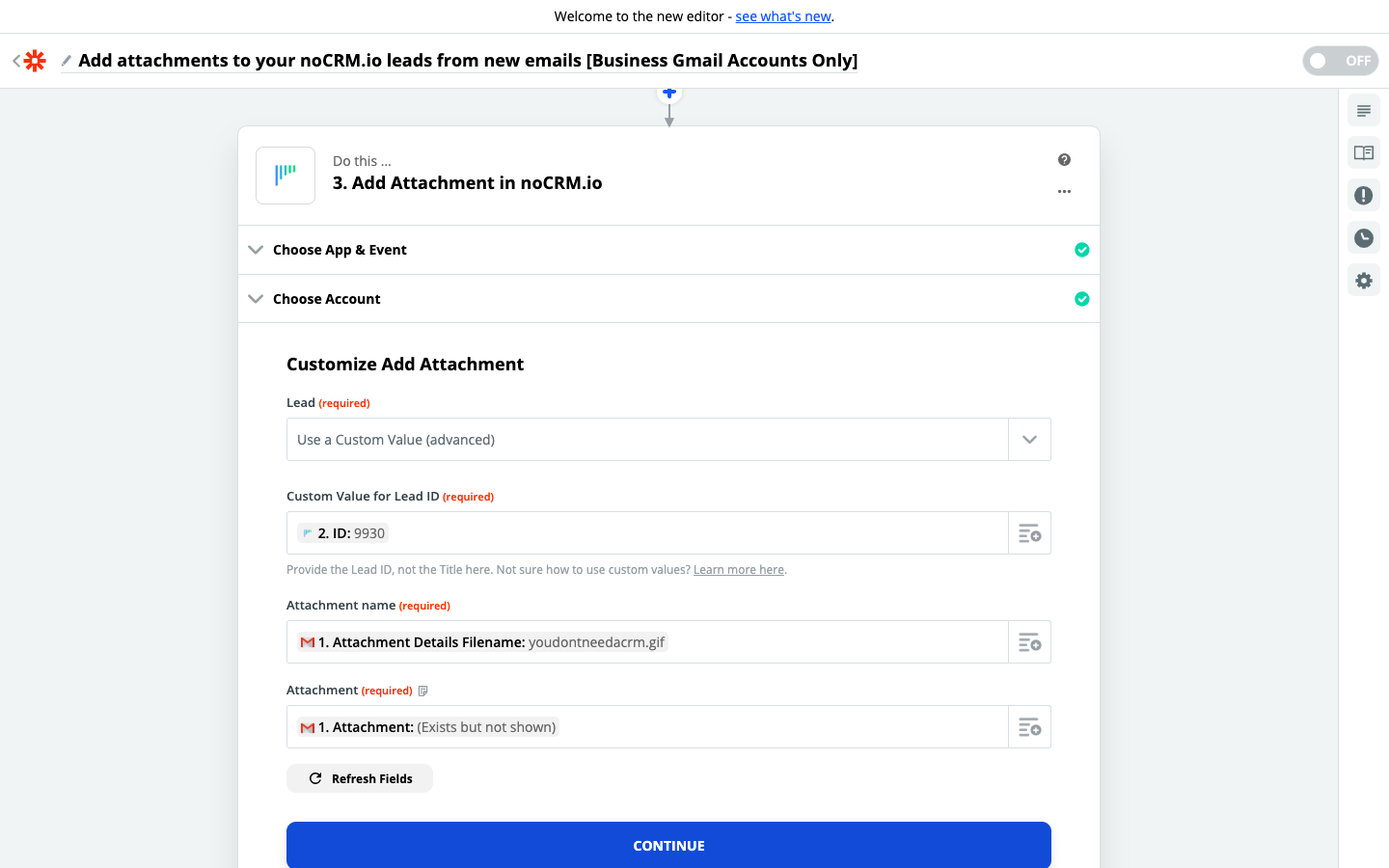
5. Test the step and the Action set up is finished!