Xero is a world-leading online accounting software built for small businesses to manage invoicing, bank reconciliation, bookkeeping and more.
Connecting Xero with propipelines.com further improves your sales workflow and ensures your accounting team receives the sales information needed.
Getting Started
Connect your propipelines.com account with your Xero account
In order to get started, you need to have a Xero account. If you don’t have one already, you can go to the Xero website and set up a free trial account.
If you have one already, go ahead and sign into your propipelines.com account. Go into the Admin Panel > Integrations > Third-party apps then select the Xero integration.
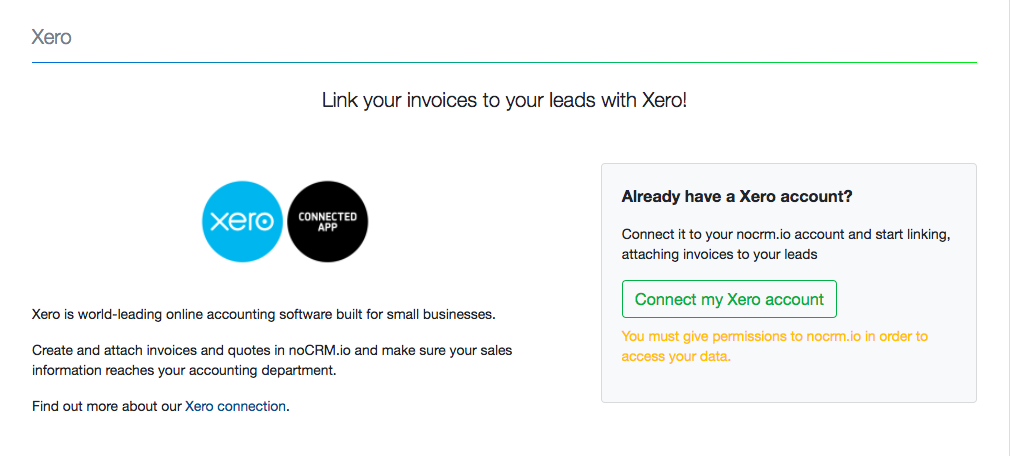
Start the integration by clicking on Connect my Xero Account and then enter your account credentials on the Xero login page.
Create and attach an invoice to a lead
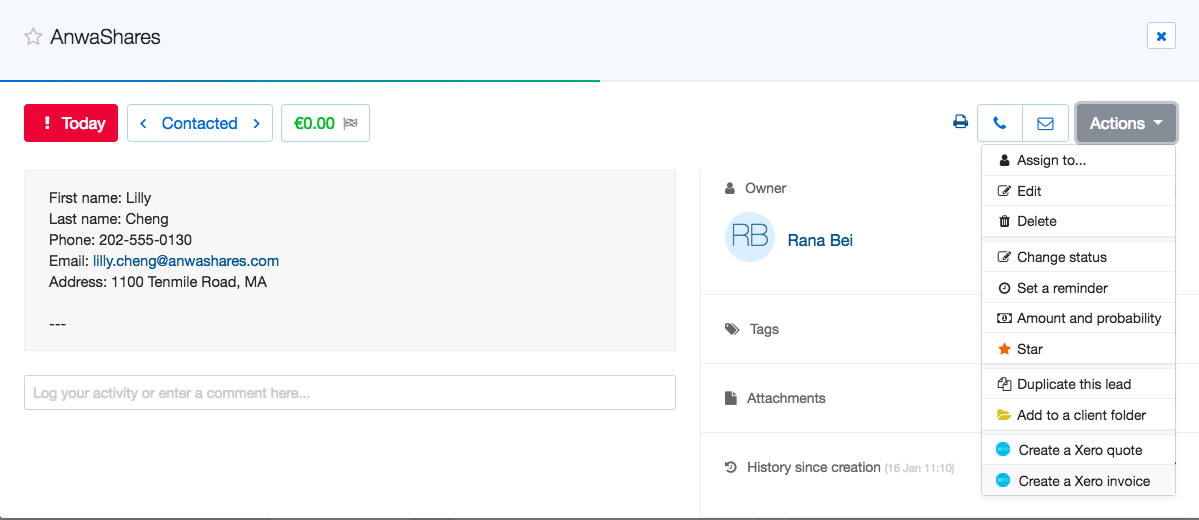
- Find your lead and click on the Actions menu to select “Create a Xero invoice”
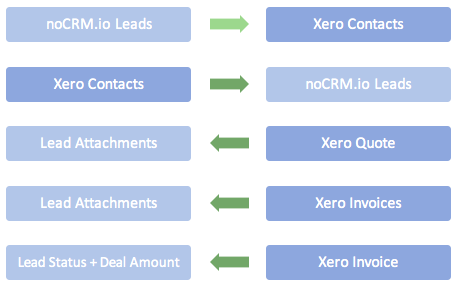
If the lead doesn’t exist in your Xero account then you choose to either create the contact automatically or manually
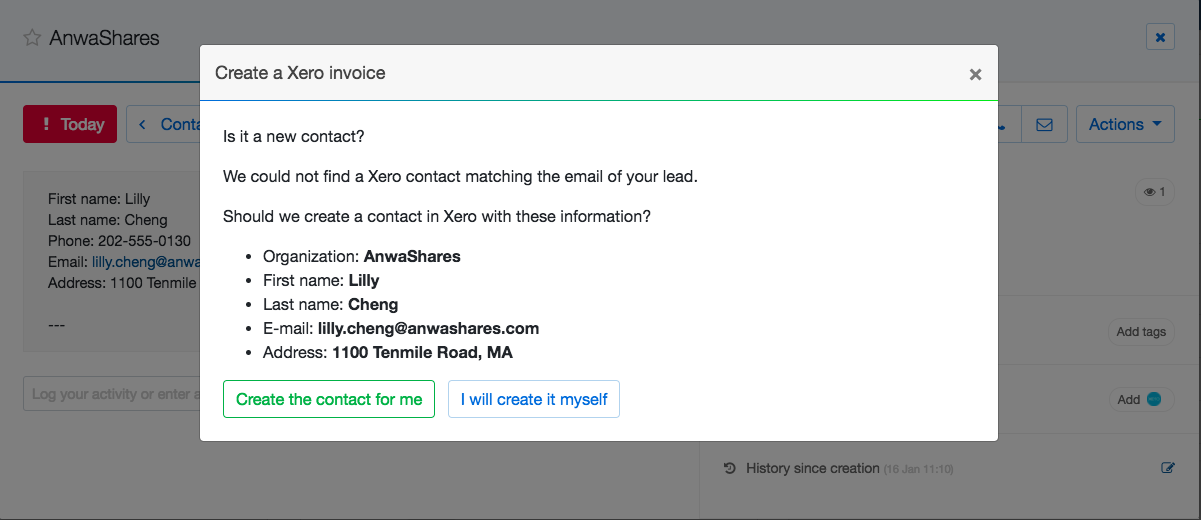
If the lead already exists in the system, you will be redirected to your Xero account to add the invoice details
Once the invoice is saved/approved the lead will automatically attach to your lead once you refresh the page.
When the invoice is attached to the lead, the lead amount is updated and the status is changed to WON automatically
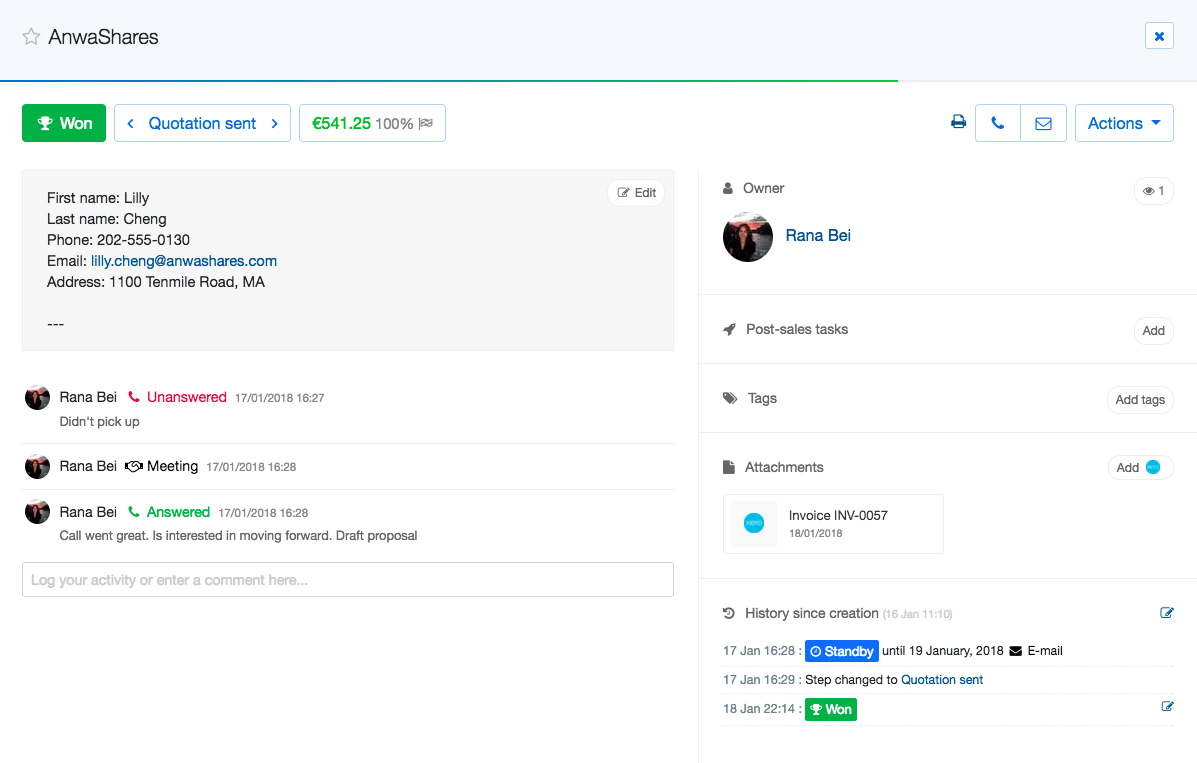
In the case that our system has not attached the invoice to your lead automatically, use the Lead Clipper to attach the invoice to the corresponding lead.
Attach an existing invoice to an existing lead
- Connect your Pro Pipe Lines account with your Xero account
- Install the Lead Clipper in your browser toolbar
- Navigate to your Xero account and select an invoice you want to attach
- Click on the +Lead button installed. A new pop-up will be displayed with a list of leads corresponding to the Xero contact or a link to create a new lead to attach the invoice to.
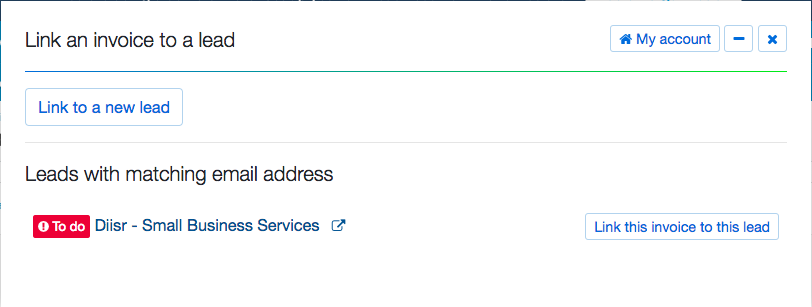
Can’t find the lead you’re looking for?
Check if lead fields or the description contain the same email as the contact in Xero. If not, modify the lead and add the email address. You should then be able to attach the Xero invoice to the lead.
Create a lead from an existing Xero contact
- Install the Lead Clipper in your browser toolbar
- Sign into your Xero account and go to the Contacts page
- Select your Xero contact and click on the +Lead button installed. A new pop-up will be displayed with the option to Create a New Lead. Once selected, the information will be extracted from the Xero contact and added to the lead’s description.
Create a Xero quote from propipelines.com
- Once the integration between Xero and propipelines.com is activated, you can easily add or create Xero quotes for your leads
- Find the lead and click on the Actions menu
- Select “Create a Xero quote”
- If the lead doesn’t exist in your Xero account then you can choose to either create the contact automatically or manually
- If the lead already exists in the system, you will be redirected to your Xero account to add the quote details
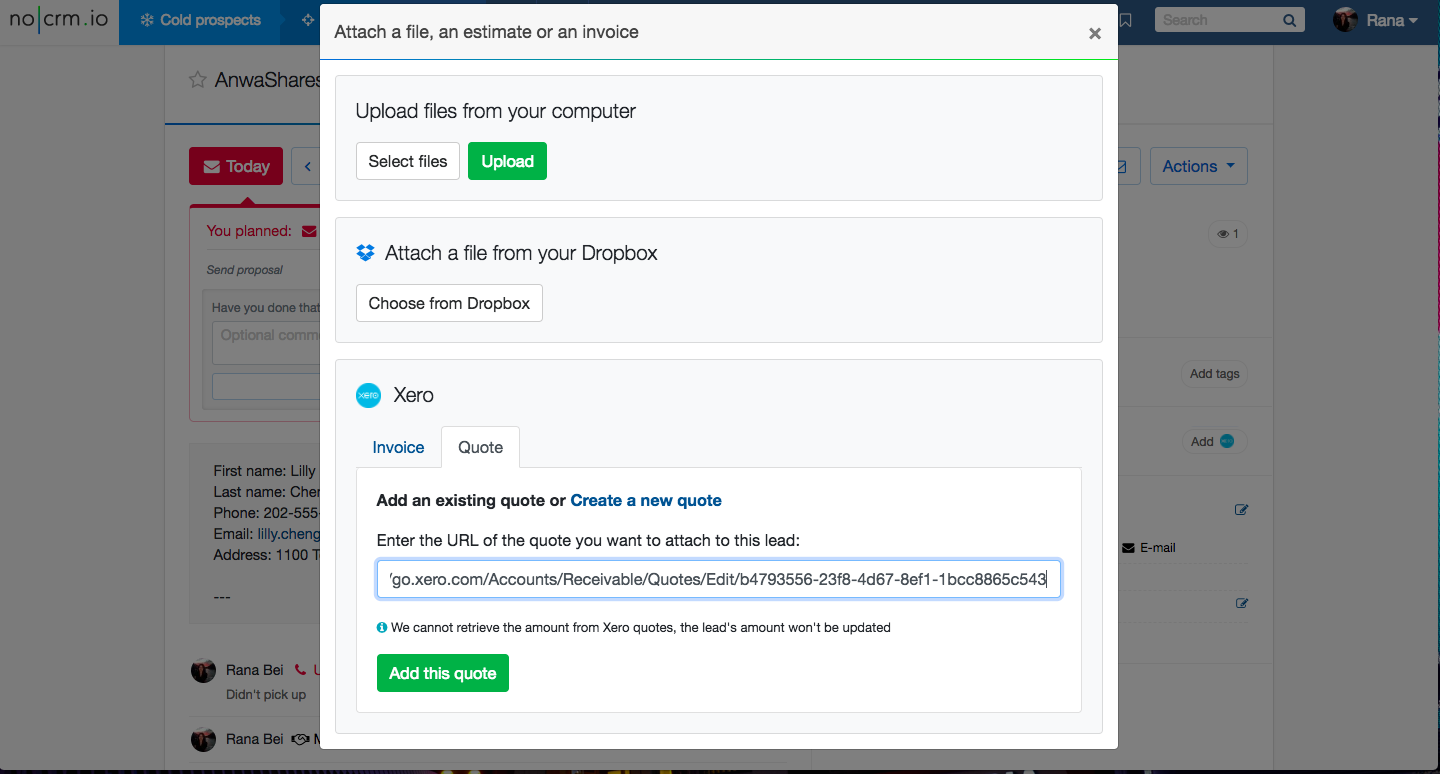
- Once you create the quote, save and copy the Xero quote URL and navigate back to your propipelines.com lead
- Click on the Add button in the Attachments section and select the Xero Quote tab to paste in the URL you copied earlier