How to use the Bcc system
Keeping track of your exchanges with leads is essential. Having them attached to the lead in your lead management software is the best thing you can do – so that you don't have to jump from one system to another.
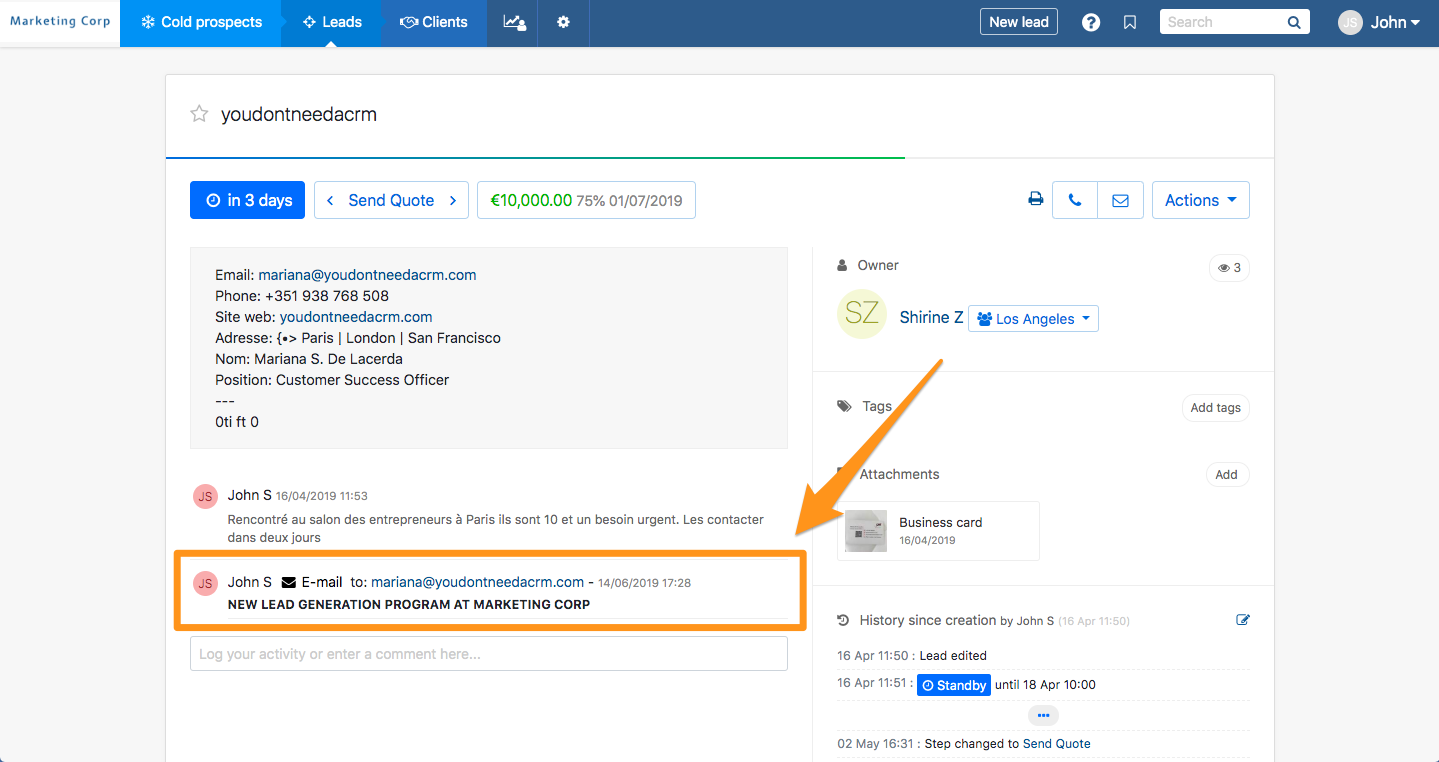
For those who don't want full email integration, there is the Bcc feature. It enables you to Bcc your account every time you send out an e-mail to a lead, automatically attaching the email to the comments field for the relevant contact.
⚠️ Do not use the @bcc email to create leads inside Pro Pipe Lines. Please use the @add email address for that purpose. More information here.

If you go to the Pending Bcc emails in the menu with an envelope on the top navbar, you will find the e-mail address you need to use as well as BCC emails not yet attached to leads.
How to use the Bcc feature?
It's very simple. When you click on the e-mail address of a lead, it automatically opens your email provider (Gmail or Outlook for example) with your personalized address in the Bcc field. Send the e-mail and refresh your page to see the e-mail attached to the lead.
Warning: when sending your email you must use the one that matches your user inside Pro Pipe Lines. If you want to use multiple email addresses or aliases you must declare them by selecting "Settings and preferences" in the dropdown menu next to your name at the top of the interface.
If it's not attached to the lead, check the Pending Bcc emails menu as the system might not have been able to determine to which lead you meant to attach the email.
Why are some emails pending?
Emails can be sent to the "Pending Bcc emails" box for several reasons:
- Account preferences
In the account preferences, when "everything is shared", you can have a preference that will allow you to attach emails to leads that don't match the sender of the email. If that option is not ticked, the email sent will need to be attached manually.
Still in the account preferences, there is an option to not attach emails to closed (won, lost, canceled) leads.
- Other reasons
When you have several leads with the same contact information, the system won't know to which lead (closed or open) to attach the email. You'll need to attach it manually to the right lead.
When the account privacy is set to "only admins can see everything" and you send the email to a lead that belongs to another user, it will stay as Pending and will have to be assigned manually.
Sending an e-mail marketing campaign to your leads and attach the info in their lead cards inside propipelines.com
If you're going to send an e-mail marketing campaign to your leads and wish to track the information inside propipelines.com, you should NOT use the @bcc.propipelines.com email. Instead, you can Bcc the campaign to the e-mail nameofyouraccount@action.propipelines.com. When doing so, you'll have the title of your e-mail campaign attached to the lead, in the comment box.